I had some previous posting covering some specific technical notes on the n8n setup [1, 2]. The current post covers the general technical notes on n8n setup, in a laundary list form, meaning that items are not coming in a logical order.
Authentication for MCP Tools in n8n
We can host MCP tools in n8n and inside n8n, we can call the internal MCP tools. Though this is internal call, still we need an authentication mechanism. For example, here I am using the Header Auth. To get this work, we first need to set up a credential for this inside n8n. When trying to set up the credential, we want to select the Header Auth following which we will see the following interface,
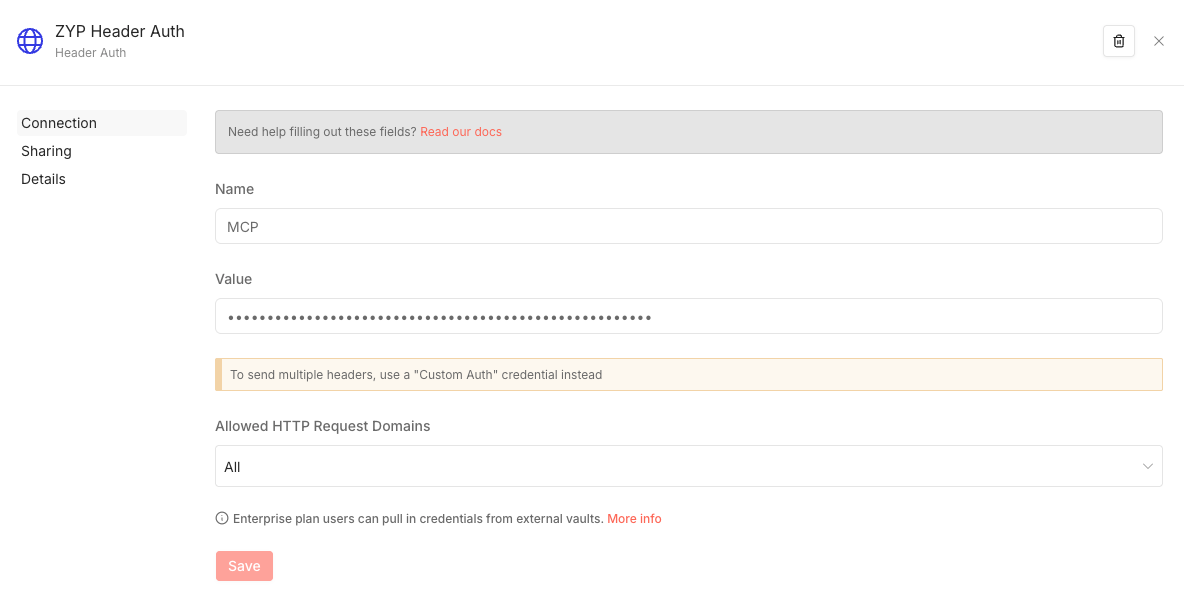
Here we need to fill in the Name and Value. To obtain the entries, we need to set up the token for our n8n instance. So, go to Settings \(\rightarrow\) n8n API and create an API key from there. Then we can fill in the name and the API key created there to the interface above.
Calling Tools on the Host Machine
The python code node inside n8n can do some basic python code execution but it may not have the modules installed for our analysis purposes. Therefore, we need a way to access python environment with those needed modules installed. Though, we can create custom image from the n8n image that we will be running with, this is not the optimal way to do it. The best way is probably to run a local service on the host machine and inside the n8n workflow, we just call the tool on-the-fly through HTTP node. For example, on the host machine, we can set up a virtual environment and have the following server running,
from flask import Flask, request, jsonify
import subprocess

app = Flask(__name__)

@app.route('/run', methods=['POST'])
def run_script():
    data = request.json
    result = subprocess.run(
        ['/home/cloud/miniconda3/envs/n8n-analysis/bin/python', data['script']],
        capture_output=True, text=True
    )
    return jsonify({
        'stdout': result.stdout,
        'stderr': result.stderr,
        'returncode': result.returncode
    })

if __name__ == '__main__':
    app.run(host='0.0.0.0', port=6001)
Then inside n8n, we can generate the python script to be run on-the-fly and call the tool above through a HTTP node. Mechanism-wise, this is something similar to the following command to call the service above,
node -e "
fetch('http://172.21.0.1:6001/run', {
  method: 'POST',
  headers: { 'Content-Type': 'application/json' },
  body: JSON.stringify({ script: '/home/cloud/packages/n8n/scripts/test.py' })
}).then(r => r.json()).then(d => console.log(JSON.stringify(d, null, 2)))
"
The script /home/cloud/packages/n8n/scripts/test.py to be run is supposed to be on the host machine. So, when generating the script inside the n8n container, we want to make sure to write the script to a mounted drive so that the host machine can get access to it. The 172.21.0.1 is the local host IP which can be found out by running,
ip route | grep default | awk '{print $3}'
from inside the n8n docker container. To get into the interactive shell of the running n8n container, we can do something like,
sudo docker exec -it <n8n_container_id> sh
References
[1] https://iris2020.net/2025-11-19-n8n_postgres_embed/
[2] https://iris2020.net/2024-11-03-n8n_notion_slack_workflow/