In this post, I will be noting down how to use Dufs [1] for setting up a file server on Windows 11. Originally, I was using gohttpserver which is no longer maintained, and Dufs is one of the recommended options on the gohttpserver GitHub [2]. First, we need to install cargo, following Ref. [3]. Then install Dufs with cargo,
cargo install dufs
Once installed, we can refer to Ref. [1] for instructions about how to use the tool for setting up the server, which is very straightforward. For my setup, I am referring to the Advanced Topics section in Ref. [1] and was using a configuration file to run the server. Here below is my YAML configuration file,
serve-path: 'D:\'
bind: 0.0.0.0
port: 80
hidden:
  - tmp
  - '*.log'
  - '*.lock'
auth:
  - admin:*****@/:rw
allow-all: false
allow-upload: true
allow-delete: true
allow-search: true
allow-symlink: true
allow-archive: true
allow-hash: true
enable-cors: true
render-index: true
render-try-index: true
render-spa: true
log-format: '$remote_addr "$request" $status $http_user_agent'
log-file: E:\Programs\file_server\dufs.log
compress: low
where admin is the user name I chose and ***** is the placeholder for the password I set for the user. In this way, only the authenticated user admin will have access to the file server. The service is running on the localhost on the port 80 so it can be accessed locally via localhost from a local browser. The serve-path: 'D:\' entry specifies that D:\ (the whole D-drive) will be hosted through the server. Here below is another service running in parallel,
serve-path: 'D:\Sharing'
bind: 0.0.0.0
port: 8088
hidden:
  - tmp
  - '*.lock'
allow-all: false
allow-upload: false
allow-delete: false
allow-search: true
allow-symlink: false
allow-archive: false
allow-hash: false
enable-cors: false
render-index: true
render-try-index: true
render-spa: true
log-format: '$remote_addr "$request" $status $http_user_agent'
log-file: E:\Programs\file_server\dufs_1.log
compress: low
Saving the configuration files somewhere on my system, I can then create a vbscript like below to start both services,
Set wshShell = WScript.CreateObject("WScript.Shell")
wshShell.Run "cmd /c dufs --config E:\Programs\file_server\dufs_config.yaml > NUL 2>&1", 0, False
wshShell.Run "cmd /c dufs --config E:\Programs\file_server\dufs_config_1.yaml > NUL 2>&1", 0, False
where E:\Programs\file_server\dufs_config.yaml and E:\Programs\file_server\dufs_config_1.yaml are apparently where I saved those two configuration files. To start the server, we can double click on the vbscript created above. Further, we can create a shortcut for the script and put it under C:\Users\<user_name>\AppData\Roaming\Microsoft\Windows\Start Menu\Programs to make it available in the Windows start menu – <user_name> refers to our Windows user name. Even further, we can press <Windows>+R to bring up the run box and type in shell:startup to bring up the file explorer to the startup folder. We can then copy the shortcut for the vbscript to the startup folder so it can start with the system.
Now we successfully set up the file server running locally but still only locally. To bring the server to the public so to be accessible from the internet, there are multiple ways. For example, we can set up the nginx service on the same Windows machine to serve the reverse proxy on port 80 and 8088 and then we may need to forward the port from the router (for serving the home Wifi) to the Windows machine. Then to make the connection secure, either we set up the SSL sertificate ourselves or use Cloudflare to have another layer of reverse proxy so that when users hit the domain name that we suppose to have for our file server, the inbound traffic goes like DNS => Cloudflare => Home Router => nginx on Windows => Dufs service on Windows. This is doable but is a bit tedious. Here I am noting down a more conveninent approach, still using Cloudflare but this time using the tunnel. First, we need to install the cloudflared util, by following the instructions in Ref. [4]. Next, open powershell and execute the following command,
cloudflared tunnel login
which will open a browser to authorize the tunnel. Then create a tunnel,
cloudflared tunnel create hwin11-tunnel
This generates a tunnel ID and credentials file. The credentials file will be saved into c:\Users\<user_name>\.cloudflared\ where <user_name> is our Windows user name, and the name of the credentials file will be <tunnel_id>.json where <tunnel_id> refers to the tunnel ID generated while running the command above. Next, create the tunnel configuration file as c:\Users\<user_name>\.cloudflared\config.yml, like below,
tunnel: d906a963-6cce-4b82-9472-b7357de029d1
credentials-file: C:\Users\kviet\.cloudflared\d906a963-6cce-4b82-9472-b7357de029d1.json

ingress:
  - hostname: tube.iris-home.day
    service: http://localhost:5556
  - hostname: files.iris-home.day
    service: http://localhost
  - hostname: share.iris-home.day
    service: http://localhost:8088
  - hostname: media.iris-home.day
    service: http://localhost:8096
  - hostname: sync.iris-home.day
    service: http://localhost:8888
  - hostname: rdp.iris-home.day
    service: tcp://localhost:3389
  - service: http_status:404
where tunnel and credentials-file needs to be populated with the tunnel ID and the credentials file, respectively. The hostname under ingress is something we need to create. Basically, we need to add in a proper DNS record for the domain name maintained via Cloudflare. To create the record, we run something like below,
cloudflared tunnel route dns hwin11-tunnel tube.iris-home.day
Now, if we go to Cloudflare and further go to the domain name => DNS => Records, we will see something like below,
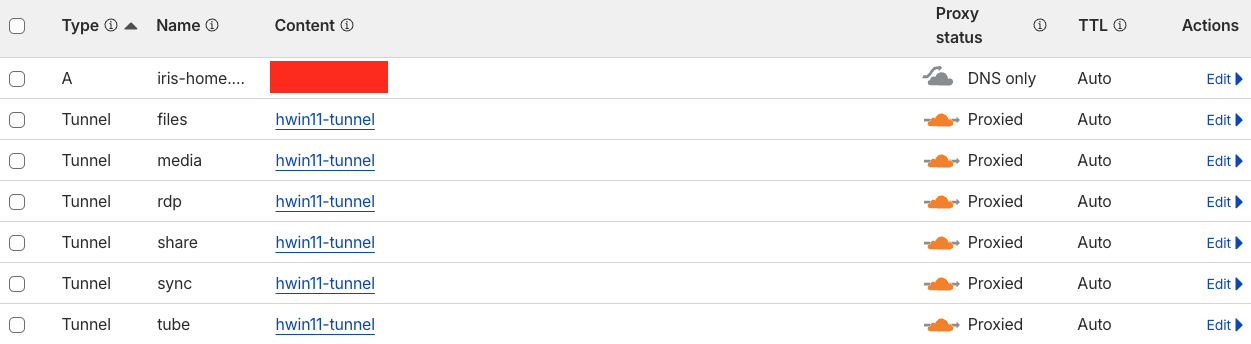
To see all the tunnels associated with the domain name, in the interface shown above, we click on the tunnel name, e.g., hwin11-tunnel. Now going back to the cloudflared configuration file above, we just need to put in the proper entry to point the hostname to the local service. For example, for the file server with Dufs, the hostname files.iris-home.day points to localhost (the one running on the port 80) and share.iris-home.day points to localhost:8088.
Finally, we just need to start the tunnel by running,
cloudflared tunnel run
We can create a batch file for this,
@echo off

cloudflared tunnel run
and then we can create a vbscript to run the batch file without bringing up the terminal,
Set WshShell = CreateObject("WScript.Shell")
WshShell.Run "c:\Users\<user_name>\OneDrive\One_Documents\Cloudflared\tube.bat", 0
Set WshShell = Nothing
where, again, <user_name> refers to our Windows user name. Then we can create the shortcut for the vbscript, put it in the Start menu and further put it into the startup folder, as all be described above.
References
[1] https://github.com/sigoden/dufs
[2] https://github.com/codeskyblue/gohttpserver
[3] https://forge.rust-lang.org/infra/other-installation-methods.html
[4] https://developers.cloudflare.com/cloudflare-one/networks/connectors/cloudflare-tunnel/downloads/