
VNC, Virtual Network Computing, is one of the ways for setting up connections to remote computers/servers. Nearly all operating systems support the VNC connection. Here, I am noting down the setup for Windows and Linux (specifically, Ubuntu). MacOS natively support the VNC remote connection. However, in my case, may Mac machine is owned by the employer and the remote conneciton functionality is disabled by admin. So, I am not going to worry about MacOS specifically. But I believe the mechanism for VNC connections is pretty much shared across platforms so notes here on Windows and Linux should still be somewhat useful for MacOS.
To connect to the remote machine via VNC, we need to run the VNC server on the remote machine. My remote server is a Ubuntu VPS and here below is presented the procedure to set up the VNC server. First, for most of the remote VPS, the desktop environment by default would not be installed, and therefore the first thing we want to do is to install the light-weight desktop environment for the VNC connection,
sudo apt install xfce4 xfce4-goodies
Next, we need to install the VNC server and here I am using TigerVNC. I tried TightVNC but found that it is not dealing with the display as well as TigerVNC – with TightVNC, the remote display is not so adaptable to different size of screen on the client side.
sudo apt install tigervnc-standalone-server -y
sudo apt-get install tigervnc-tools  # Password tool
After installation, run,
vncserver
and set up the password for the VNC connection when prompted to do so. Next, let’s create the startup script for VNC, which will be executed when the VNC conections is established,
cat > ~/.vnc/xstartup << 'EOF'
#!/bin/sh
export XKL_XMODMAP_DISABLE=1
export HOME=/home/y8z
unset SESSION_MANAGER
unset DBUS_SESSION_BUS_ADDRESS
exec startxfce4
EOF

chmod +x ~/.vnc/xstartup
Now, restart the VNC server,
vncserver -kill :1
vncserver :1 -localhost no
The first command kills the running VNC server and the second one start it. Here, :1 refers to the display number which is very much like an ID for the VNC server session. Usually, :1 would work if no other VNC services running on the same server. In case of failing, change :1 to :2 or something else. The -localhost no is to tell the VNC server not to bind the service specifically to the localhost. In normal cases, e.g., when we are using noVNC that runs on the same server to connect to the VNC server, the flag -localhost no won’t be needed (we will see the reason why this is the case when later we discuss the noVNC connection). However, in some cases, we will need this flag, e.g., when using netbird for connection among the local network constructed with netbird – we will talk about this in details later in the post.
In some cases, starting the VNC server with the command above should be just working. Even after the session logout, still the VNC server would be running in the background. However, in some cases, it seems that the VNC server will only be active while the login session is active. Once logging out from the connected session, the initially started VNC server would be killed. In such cases, we may need to set up the system service for the VNC server so that it can keep running in the background independent of session login/logout. Here below is the system service file to be put at, /etc/systemd/system/vncserver.service (the service file name, of which the stem name will be the service name, can be changed),
[Unit]
Description=TigerVNC Server
After=network.target

[Service]
Type=forking
User=y8z
ExecStart=/usr/bin/vncserver :1 -localhost no
ExecStop=/usr/bin/vncserver -kill :1
Restart=on-failure

[Install]
WantedBy=multi-user.target
Then run,
sudo systemctl daemon-reload
sudo systemctl enable vncserver
sudo systemctl start vncserver
sudo systemctl status vncserver
Now the VNC service should be running on the server, ready for connection, listening on port 5901 – normally it would 5901 by default. If the :1 was ever changed to a different value, the port number will also be changed accordingly, e.g., :2 would then listen on port 5902. To find out the VNC port, run,
sudo ss -tlnp | grep 590
The steps above for setting up the VNC server applies to Linux OS. On Windows, we can install the TightVNC server following link Ref. [1]. Here below is shown the typical parameters in the TightVNC GUI on Windows,
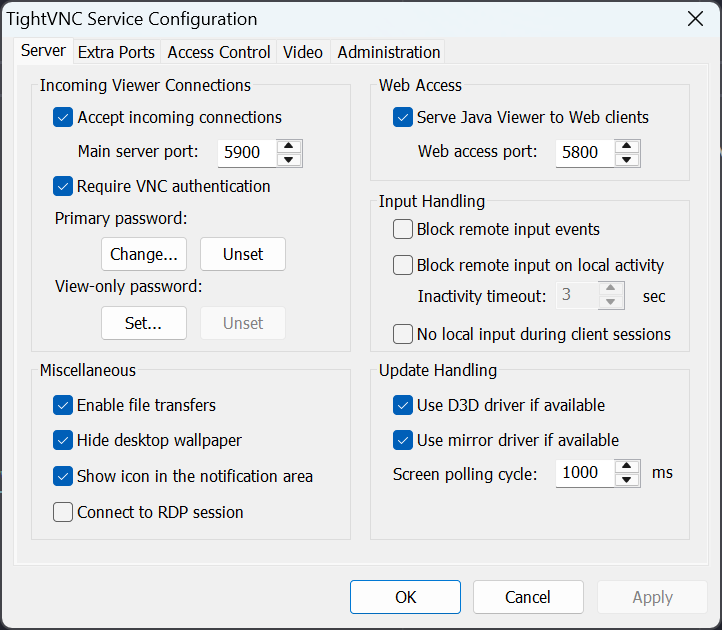
In my case here, the VNC server is running on the port 5900.
Now, we have the VNC server running and on the client side, we want to have a way to connect to the VNC server. Multiple choices are available on the client side and here I am noting down two of them. One is using noVNC and the other is using Apache Guacamole. For noVNC, in fact we can set up the noVNC service running on the same server as VNC is running on. To start, we can run the following commands on the server,
sudo apt install novnc python3-websockify
websockify --web=/usr/share/novnc 6080 localhost:5901
where the first command install the noVNC service and python3-websockify is the WebSocket-to-TCP proxy that bridges noVNC (browser) with the VNC server. The websockify process stays in the foreground and then we can go to a browser on the client side to connect to the noVNC service running on the server (which will further connect to the VNC server running on the same server through websockify). Suppose the domain name of the server is my_domain.com, we can connect to the noVNC service via http://my_domain.com:6080. If successful, we will need to put in the password that we earlier set for the VNC server and then we will see the remote server graphical interface. Once making sure it is working, we can cancel the websockify command and set up another system service so it can run in the background as a service. To do this, create a file at /etc/systemd/system/novnc.service and put in the contents below,
[Unit]
Description=noVNC WebSocket Proxy
After=network.target

[Service]
Type=simple
User=cloud
ExecStart=/usr/bin/websockify --web=/usr/share/novnc 6080 localhost:5901
Restart=always
RestartSec=5

[Install]
WantedBy=multi-user.target
Then run,
sudo systemctl daemon-reload
sudo systemctl enable novnc
sudo systemctl start novnc
sudo systemctl status novnc
To connect to the noVNC service at this stage, we need the port 6080 to be open on the server. To set up a secure connection via https, I am using nginx + Cloudflare to do the reverse proxy whereby Cloudflare is mainly responsible for facing the external traffic securely. To do that, refer to the instructions in Refs. [2-4].
Further, the noVNC can be used to connect to the VNC server running on another machine. For example, from above, we set up the VNC server on our Windows 11 machine. In my case, I installed netbird on both the Windows 11 machine and the remote VPS where the noVNC service is installed. Therefore, I can set up another noVNC system service to connect to the Windows 11 machine VNC server through the netbird network. To do this, basically, I only need to replace the localhost in the system service file above, to the netbird domain name of my Windows 11 machine. For sure, if the noVNC service for connecting to the VNC server running on the same VPS already exists, we need to change the noVNC port from 6080 to another not-in-use port for the Windows 11 connection.
Another convenient way to set up web-based connection to the VNC server is to use Apache Guacamole. First, we need to install Guacamole as a service on the server [5],
git clone "https://github.com/boschkundendienst/guacamole-docker-compose.git"
cd guacamole-docker-compose
./prepare.sh
sudo docker compose up -d
In some cases, we may need to change the port on the host to be used for the service – in my case, I had to change the host port to 8811. Here below is the full version of the docker-compose.yml,
networks:
  guacnetwork_compose:
    driver: bridge

# services
services:
  # guacd
  guacd:
    container_name: guacd_compose
    image: guacamole/guacd:1.6.0
    networks:
      - guacnetwork_compose
    restart: always
    volumes:
    - ./drive:/drive:rw
    - ./record:/record:rw
  # postgres
  postgres:
    container_name: postgres_guacamole_compose
    environment:
      PGDATA: /var/lib/postgresql/data/guacamole
      POSTGRES_DB: guacamole_db
      POSTGRES_PASSWORD: 'QzE3H5eUXjvAXec6NivVYGEoQn52J94APbC63Cxe92ApaedtDx'
      POSTGRES_USER: guacamole_user
    image: postgres:15.2-alpine
    networks:
      - guacnetwork_compose
    restart: always
    volumes:
    - ./init:/docker-entrypoint-initdb.d:z
    - ./data:/var/lib/postgresql/data:Z

  # guacamole
  guacamole:
    container_name: guacamole_compose
    group_add:
      - "1000"
    depends_on:
    - guacd
    - postgres
    environment:
      GUACD_HOSTNAME: guacd
      POSTGRESQL_DATABASE: guacamole_db
      POSTGRESQL_HOSTNAME: postgres
      POSTGRESQL_PASSWORD: 'QzE3H5eUXjvAXec6NivVYGEoQn52J94APbC63Cxe92ApaedtDx'
      POSTGRESQL_USERNAME: guacamole_user
      RECORDING_SEARCH_PATH: /record
    image: guacamole/guacamole:1.6.0
    networks:
      - guacnetwork_compose
    volumes:
      - ./record:/record:rw
    ports:
      - 8811:8080/tcp
    restart: always
Following the same way as mentioned in Refs. [2-4], we can set up a secure connection to the Guacamole service with nginx + Cloudflare. Once the Guacamole service is up running, we can connect to it through the web browser and inside it, we can set up connections with VNC by putting in the VNC hostname and port. The VNC port on the server that we are trying to connect to, from the Guacamole service, should be open to take inbound traffic. If the port is not open, the connection cannot be established through the public domain or IP address. In my case, I have the netbird service [6] running on both of the two machines running the Guacamole service and the one running the VNC server. Then I can put in the netbird domain name as the host for VNC, in Guacamole, and the connection can be set up through the local network established with netbird among the different machines (all of which have netbird installed). As for the port, for sure, we will use the VNC port for the connection.
In fact, Guacamole is a very useful platform for remote connections and not only it supports the VNC protocol but also it support other protocols like SSH and RDP (Remote Desktop Protocol). That means we can set up SSH connection to a lot of our servers, using a browser. Same thing for RDP with which we can get access to our Windows machine using a browser, very handy.
Sometimes we may have some issues with icons display (e.g., icons of folders, etc. are not shown properly or even missing) on the VNC desktop environment, in which case we can run the following command to install the icon theme,
sudo apt install gnome-icon-theme hicolor-icon-theme -y
References
[1] https://www.tightvnc.com/download.php
[2] https://iris2020.net/2024-01-15-yourls_docker/
[3] https://iris2020.net/2023-09-08-docker_nginx/
[4] https://iris2020.net/2023-12-25-vps_docker_services/
[5] https://github.com/boschkundendienst/guacamole-docker-compose